
Want to add text to prove your copyright of video? Or simply want to add them to retouch your video? Search on Google, The most answers are Windows Movie Maker, a free Window’s own video multimedia edit software. However, those complicated parameter must confuse you a lot, and the text content are monotonous. You don’t want to spend a whole day on this stuff, don’t you?
Video text edit software may make this problem much easier, but there are always some limitations (video formats, text edit, etc.) or complicated operations. Especially for the online software, you should be smart enough to avoid these insecure elements.
What we need is a simple software to add text to video freely, to satisfy our imaginations, and even for the new user, they ought to operate it like a master.
Here we introduce you Video Watermark Pro. Clear interface yet powerful function, easy operation yet professional output. With it, you can add text, image with free edit to video as you wish. Video formats won’t be a problem - all popular video formats are supported as well.

Before that, make sure you have already downloaded Video Watermark Pro, if not, click here to download.
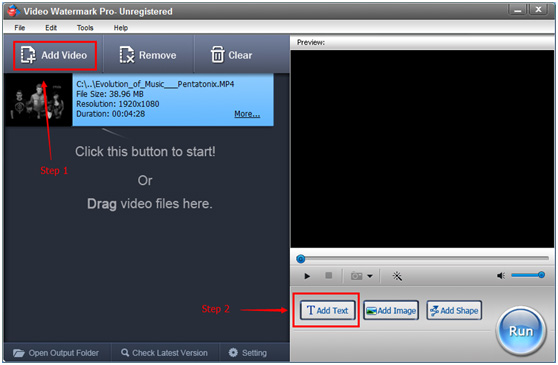
Step 1. Click “Add Video ” and upload your video.
Step 2. Click “Add Text” to text edit interface, click “Add” to start your text-add process (Detail edit listed after step 3).
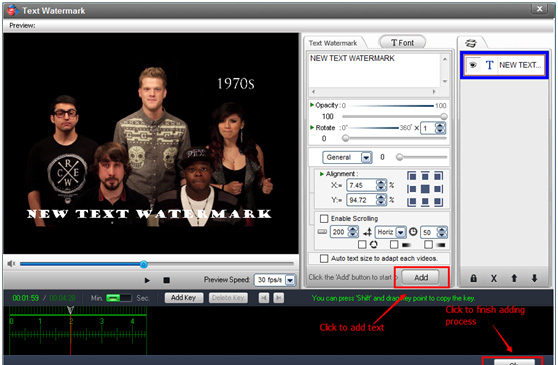
Step 3. Click “Ok” back to main interface, click “ Run” to enter the output interface, after choosing output settings, click “Run” to complete whole process.
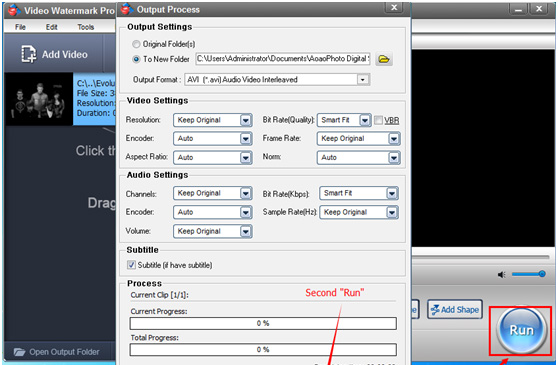
More detail about how to add text to video please click:
https://www.video-watermark.com/guide/how-to-add-text-watermark-to-video.html
Want to edit fabulous text watermark? We will show you detail.
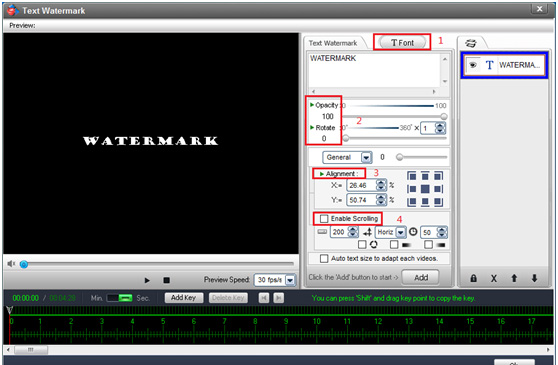
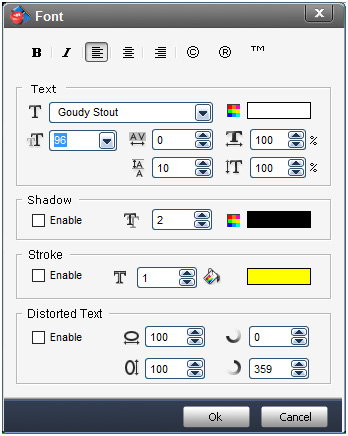
1. Change the text font as you wish, including color, type, size, shadow, symbol, etc.
2. Adjust opacity and rotate.
3. Adjust text content’s place with precise parameter, or you can directly drag text to anywhere you want.
4. Enable text scrolling.
Tips: You can add more than 1 layer to create text watermarks, combine and arrange them as you wish.
Still have trouble about adding text to video? Please feel free to Email Us >>
Except adding text watermark, it also supports images, animated GIF, multiple editing functions and unique effects as well. Batch watermarking hundreds of videos at once. More information please click: https://www.video-watermark.com/