
Why we need to add logo to a movie? In most cases, the movie you want to add your logo on is personal movie clip and not Hollywood commercial movie. For example: Jackson family is just back from a travel, and he has the right to add his personal logo to videos he shot during his journey to protect these videos’ copyright before uploading video clips on his blog and sharing them to his friends. Add logo to movie/video is easy and fast to mark the movie and protect the movie’s copyright. Jackson can also add more details on the movie, so his friends will be seeing more details about this travel by adding words on it.

As for some webmasters, it is important to add your web logo to movie/video clip you created. Some visitors, who pass by and watch videos on this site, will also learn that those videos are copyrighted with your web logo on them. If anyone else would like to use the video/movie on other sites or for other purpose, he need credit you when using it or pay for it. This could be a good and free promotion for your site.
Many people do not know how to add logo to videos/movies they made. Actually it is a simple task if you have a right watermarking tool. Every user is able to complete the process of adding logo to movie easily with it. So the very first step is to find the right software.
We can find many watermarking software products via Google. So how to choose a good one is very important. Here I list some points that we should pay attention to when choosing a good watermarking tool:
1. The software must allow you to add logo/word/image to movie/video.
2. The software must support input/output different video formats such as AVI, MEEG, MP4, MKV, WMV, MOV, M2TC, etc.
3. Support some related functions, such as video editing function, etc.
4. Easy to use: With intuitive interface, everyone can get started in seconds instead of taking much time to learn software tutorial.
5. Fast speed and good quality.
Accordingly, I recommend Video Watermark Pro to you. It is just the excellent one, which allows you to embed text, image, logo, sign (include animated) to your video in batch mode. Video Watermark Pro has simple friendly interface and fast speed, so the process of watermarking becomes very easy. You can finish it with few clicks. It is an excellent solution to protect and annotate your video. Click below button to download Video Watermark Pro:
Click below button to download Video Watermark Pro:

Download and launch Video Watermark Pro, and then click “Add Video” button to load your videos to this program. After that, click “Add Image” button to jump to image watermark interface.
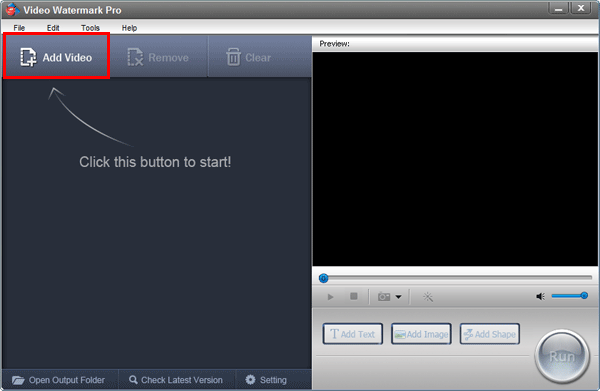
Tips: You can load a lot of videos and use Video Watermark Pro to put logo on these videos in batch mode instead of watermarking them one by one.
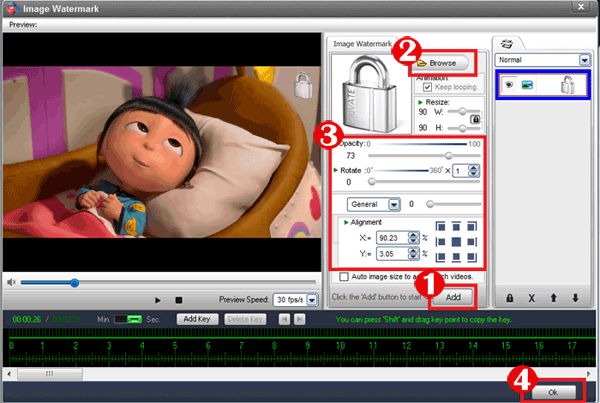
①On the image watermark interface, click “Add” button to create an image watermark layer first, and then you can start editing with this layer.
②Click “Browse” button to select the watermarks the program provided (over 150 watermarks, including animated image) or import customized logo from your hard drive.
③You can also adjust opacity, rotation and arrangement (or drag logo to change position).
④Click “OK” return to main interface.
After all settings are OK, click “Run” button on the right bottom of the main interface to go to output setting interface.
Select an output folder and specify an output video format. Here all popular video formats are provided for you, including AVI, MP4, WMV, MKV, MOV, 3GP, FLV, SWF, and DVD.
Click “Run” button on the output interface to start watermarking process. After done, the output folder will open automatically.
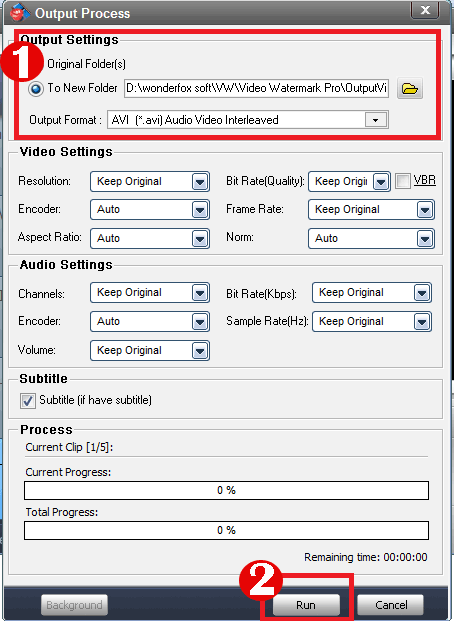
After processed the output folder will open automatically.
Video Watermark Pro allows you to embed text, image, logo, sign (include animated GIFs) to your video in batch mode. It has simple operation, friendly interface and fast speed process, so the processing of watermarking becomes very easy and fast. Have a free trial below: